An Optimoz service (opens in a new tab)

Product tour

Click through YouPace. No sign-up.

Twenty real screens, from a learner’s first day to an auditor’s question. Step through them in order, or jump to a role.

Step 1 of 20

LearnerHome
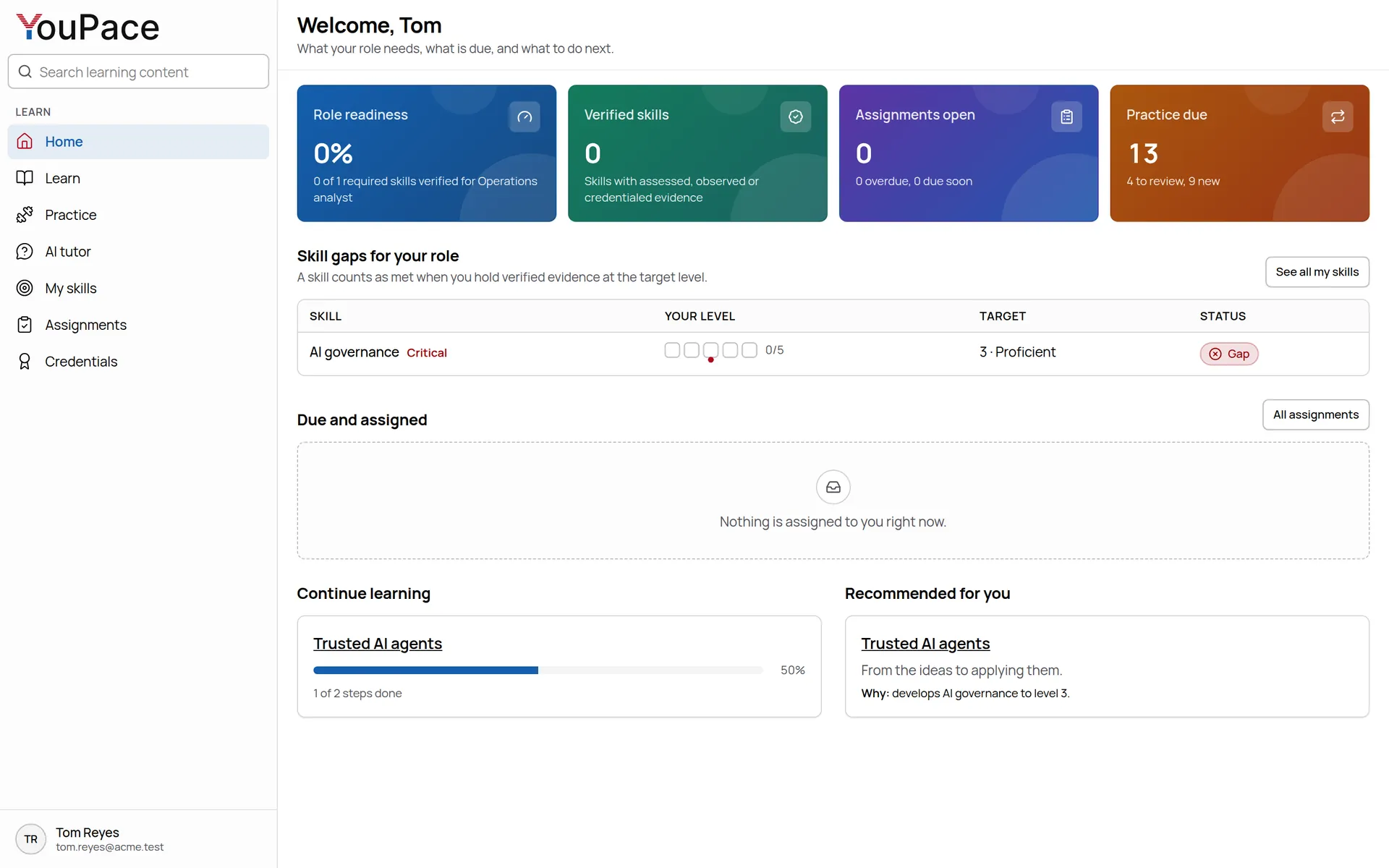
YouPace learner Home: role readiness, verified skills, assignments open and practice due tiles, a skill-gap table for the role, and a recommended pathway with the reason it was picked.

Learner

Start with what your role needs.

Tom’s Home shows his role readiness, the skills his role requires, what’s due and what to do next. Recommendations say why they were picked.

Look for

  1. Role readiness: required skills verified at the target level.
  2. Skill gaps: a gap stays a gap until verified evidence closes it.
  3. “Why: develops AI governance to level 3.”

Use ← and → to move.
LearnerLearn
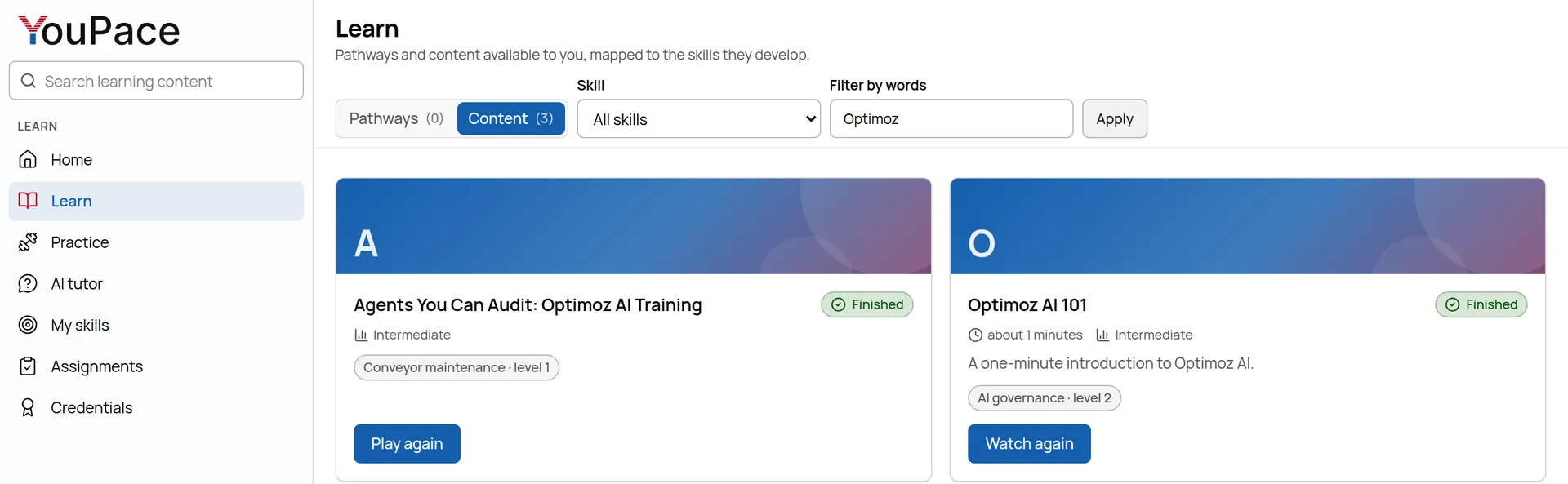
The Learn catalog showing a SCORM course and a video, each tagged with the skill it develops, with Play again and Watch again buttons.

Learner

One catalog, every item tracked.

The catalog shows what Tom is in the audience for, mapped to the skills each item develops. Filter by skill or by words.

Look for

  1. Each item names its skill and level.
  2. Play, Watch or Study: the right player for each format.

Use ← and → to move.
LearnerPDF reader
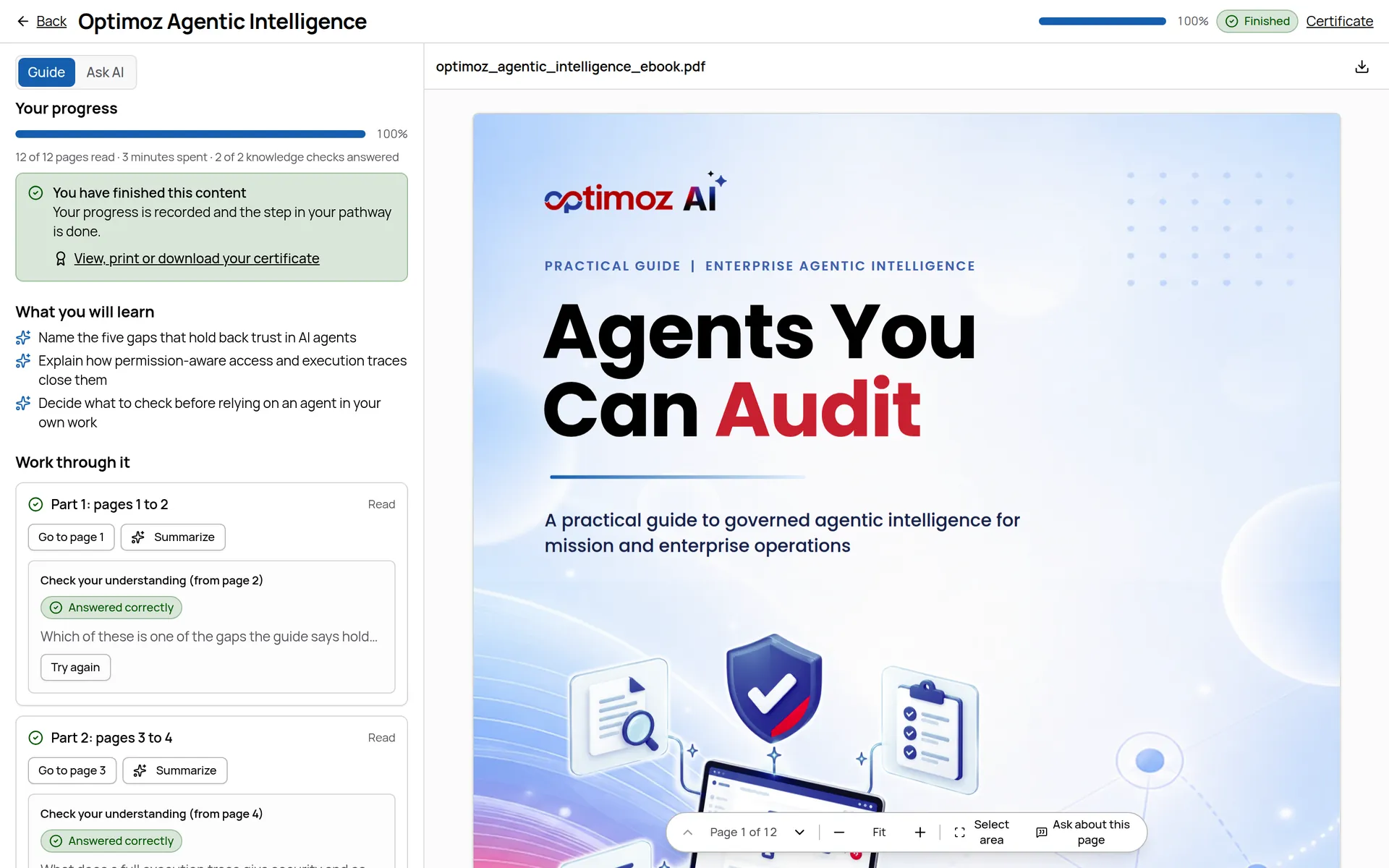
The guided PDF reader: a study guide with progress, learning objectives, Summarize buttons and answered knowledge checks beside the document, with Select area and Ask about this page in the toolbar.

Learner

Study a document, don’t just open it.

The guided reader keeps your place, counts a page only once it has been read, and places each knowledge check at the page it was written from.

Look for

  1. The progress line: pages read, time spent, checks answered.
  2. Summarize, with AI.
  3. Select area and Ask about this page.

Use ← and → to move.

LearnerVideo transcript
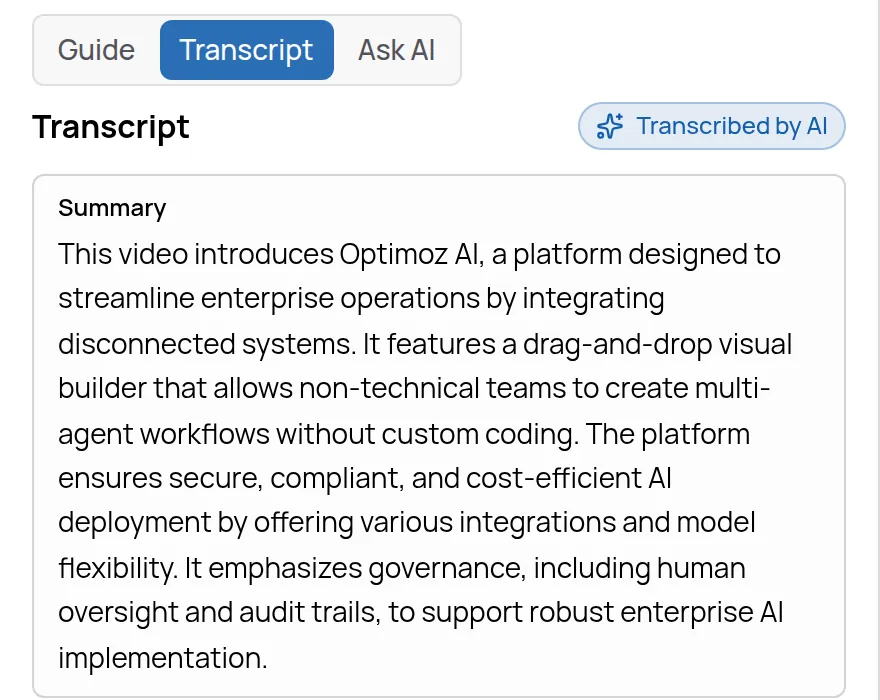
The Transcript tab of a video, marked Transcribed by AI, with an AI-written summary of the video.

Learner

Watch with captions and a transcript.

Once a video is transcribed with AI, it gets captions, a summary, and a transcript whose lines play from that moment.

Look for

  1. “Transcribed by AI”.
  2. The AI summary of the video.

Transcripts are labeled as AI-generated.

Use ← and → to move.

LearnerCourse loader
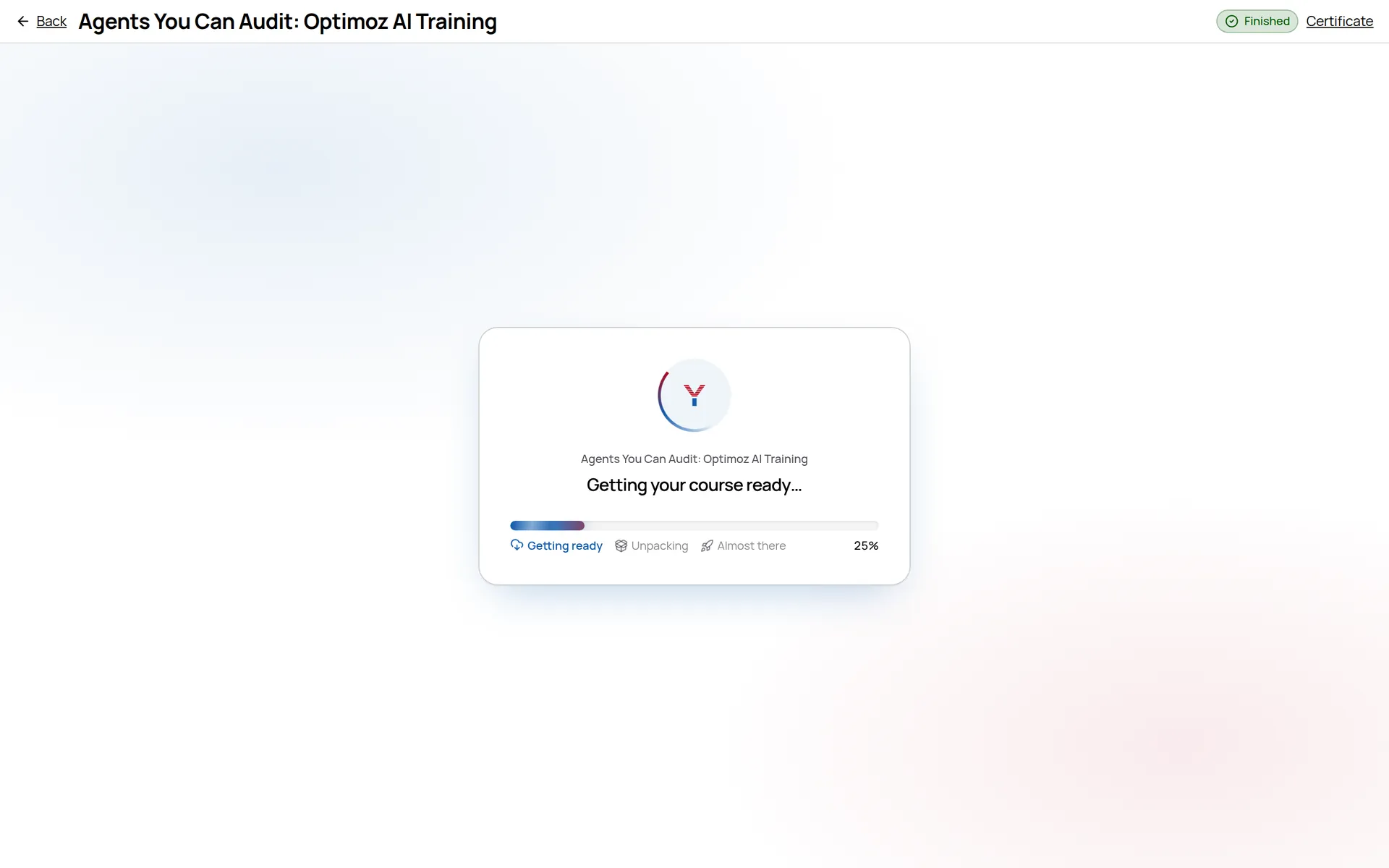
The course loader: Getting your course ready, with a progress bar at 25% and the stages Getting ready, Unpacking and Almost there.

Learner

Open a course a file at a time.

Only the first page is needed to start. The loader shows each stage, so it never looks frozen.

Look for

  1. Getting ready
  2. Unpacking
  3. Almost there.

Use ← and → to move.

LearnerSCORM player
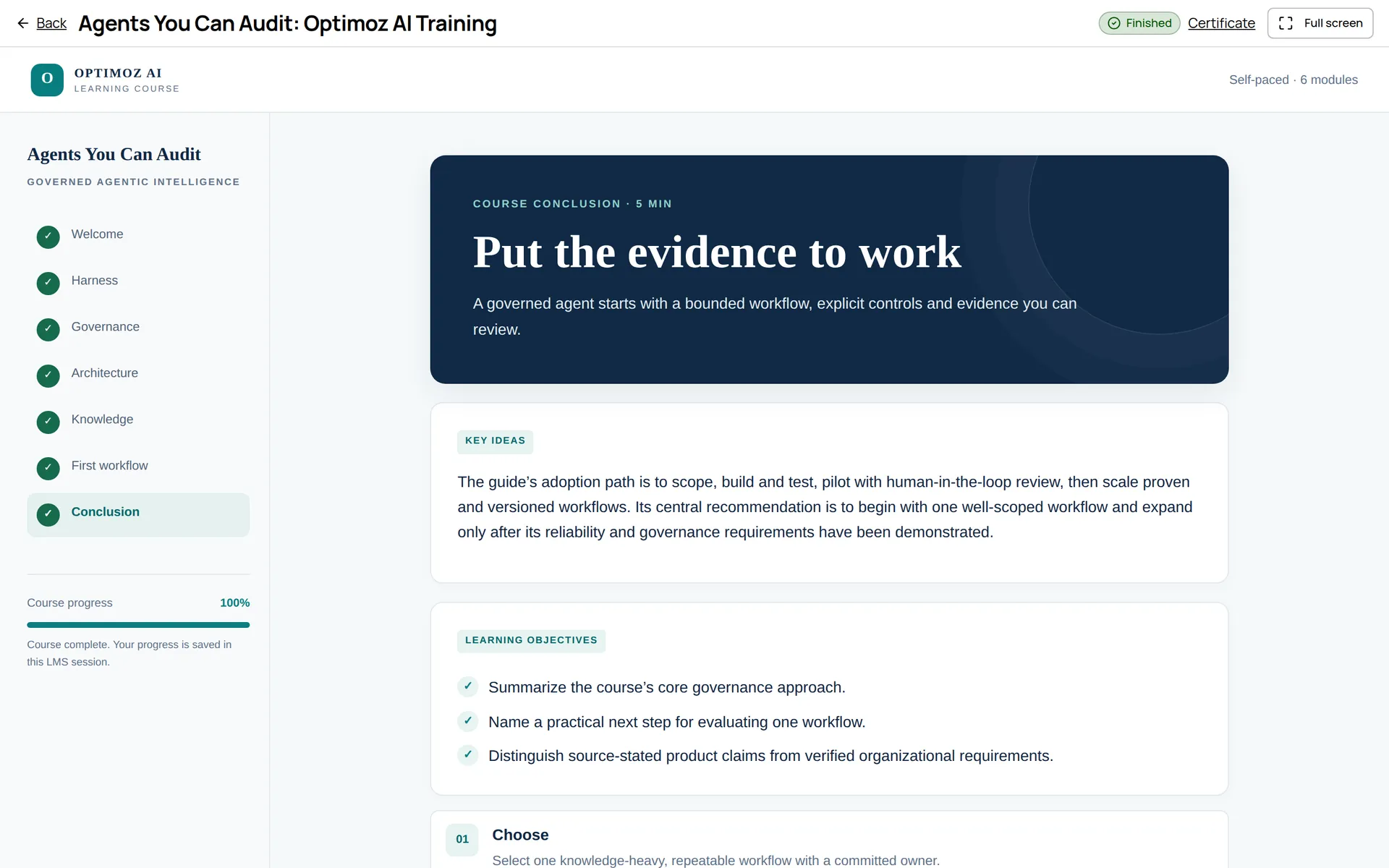
An Optimoz SCORM course playing inside YouPace, with Finished, Certificate and Full screen in the header.

Learner

Play it inside YouPace.

SCORM 1.2 and 2004, cmi5 and Tin Can courses run in the built-in player. Bookmarks, status, score and time are kept between visits, and finishing issues a certificate.

Look for

  1. Finished and Certificate.
  2. Full screen.

Use ← and → to move.

LearnerAI tutor
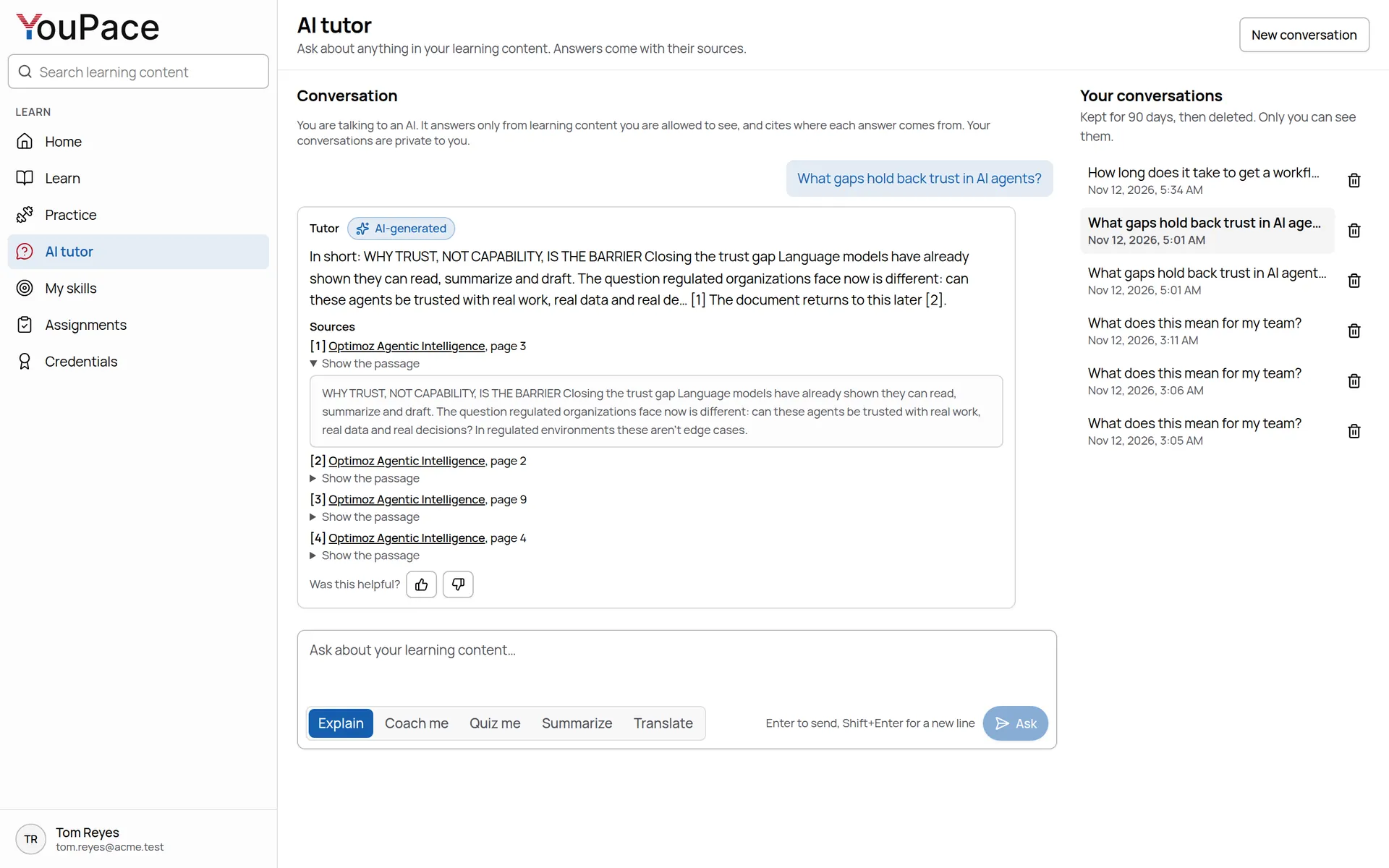
The AI tutor answering a question, labeled AI-generated, with four numbered sources by document and page, one passage expanded, mode buttons Explain, Coach me, Quiz me, Summarize and Translate, and the learner's private conversation list.

Learner

Ask the tutor. Check its sources.

The tutor answers from content Tom may see, and lists every source with its page. His conversations are his alone.

Look for

  1. The AI-generated label.
  2. Sources, by document and page.
  3. The five modes.
  4. “Kept for 90 days, then deleted.”

The answer text was written for this demo. The sources, citations and layout are the real product.

Use ← and → to move.

LearnerPractice
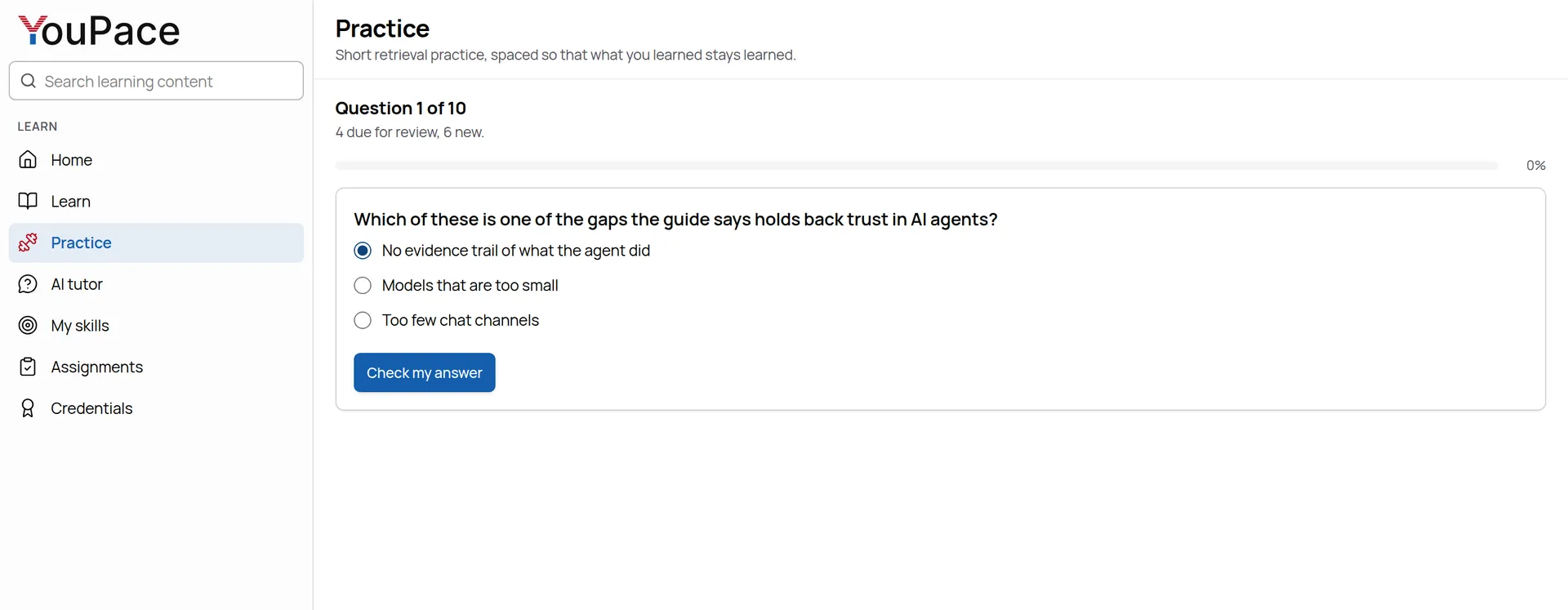
Practice: question 1 of 10, 4 due for review and 6 new, a multiple-choice question with Check my answer.

Learner

Practice what’s about to fade.

Short practice brings back items that are due, then new ones for the pathways Tom is on. It’s never graded.

Look for

  1. “4 due for review, 6 new.”
  2. Check my answer.

Use ← and → to move.

LearnerPathway
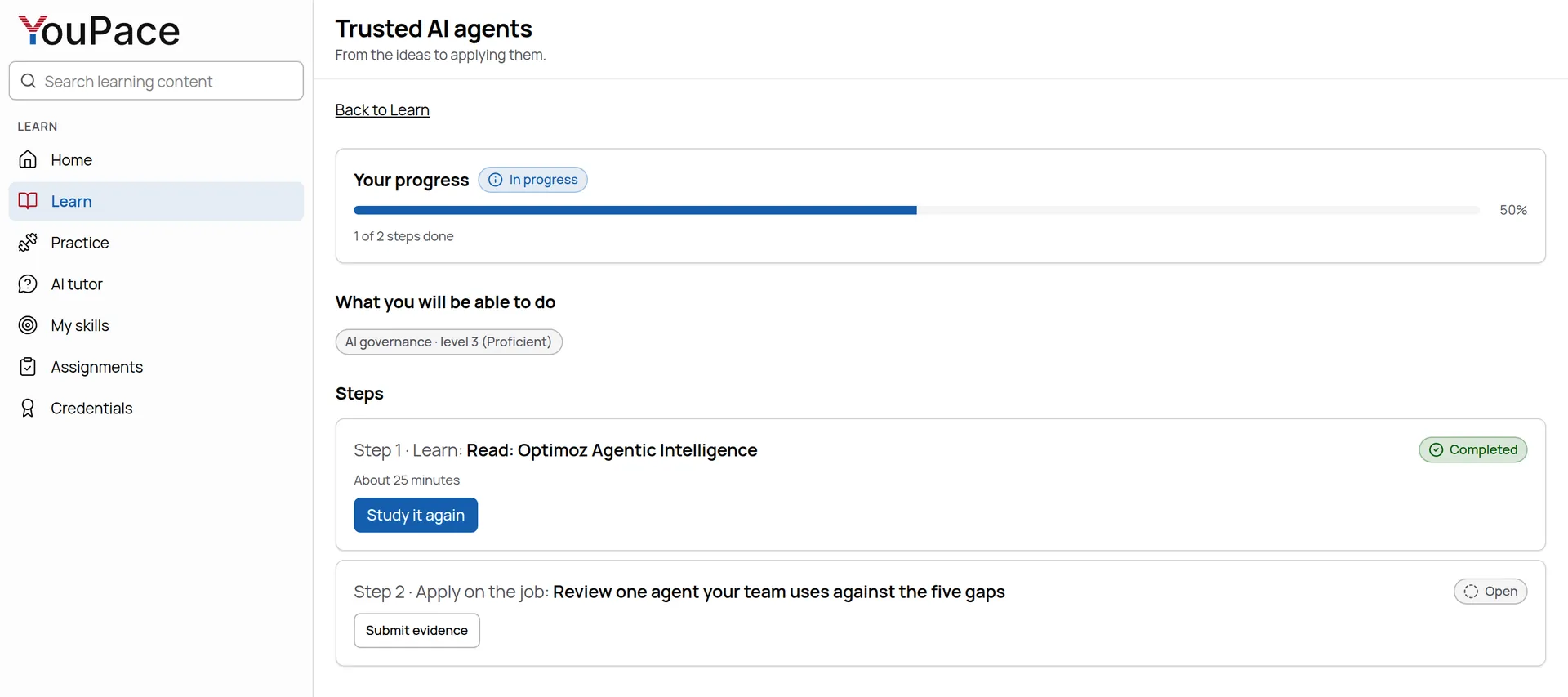
A pathway at 50%: step 1, read a guide, completed; step 2, apply on the job, with a Submit evidence button. The target skill is AI governance at level 3.

Learner

Learn it, then do it on the job.

A pathway can’t be published without a practice or proof step. Here, step 2 asks for evidence from real work, which Tom’s manager signs off.

Look for

  1. The target skill and level.
  2. Submit evidence.

Use ← and → to move.

LearnerCertificate
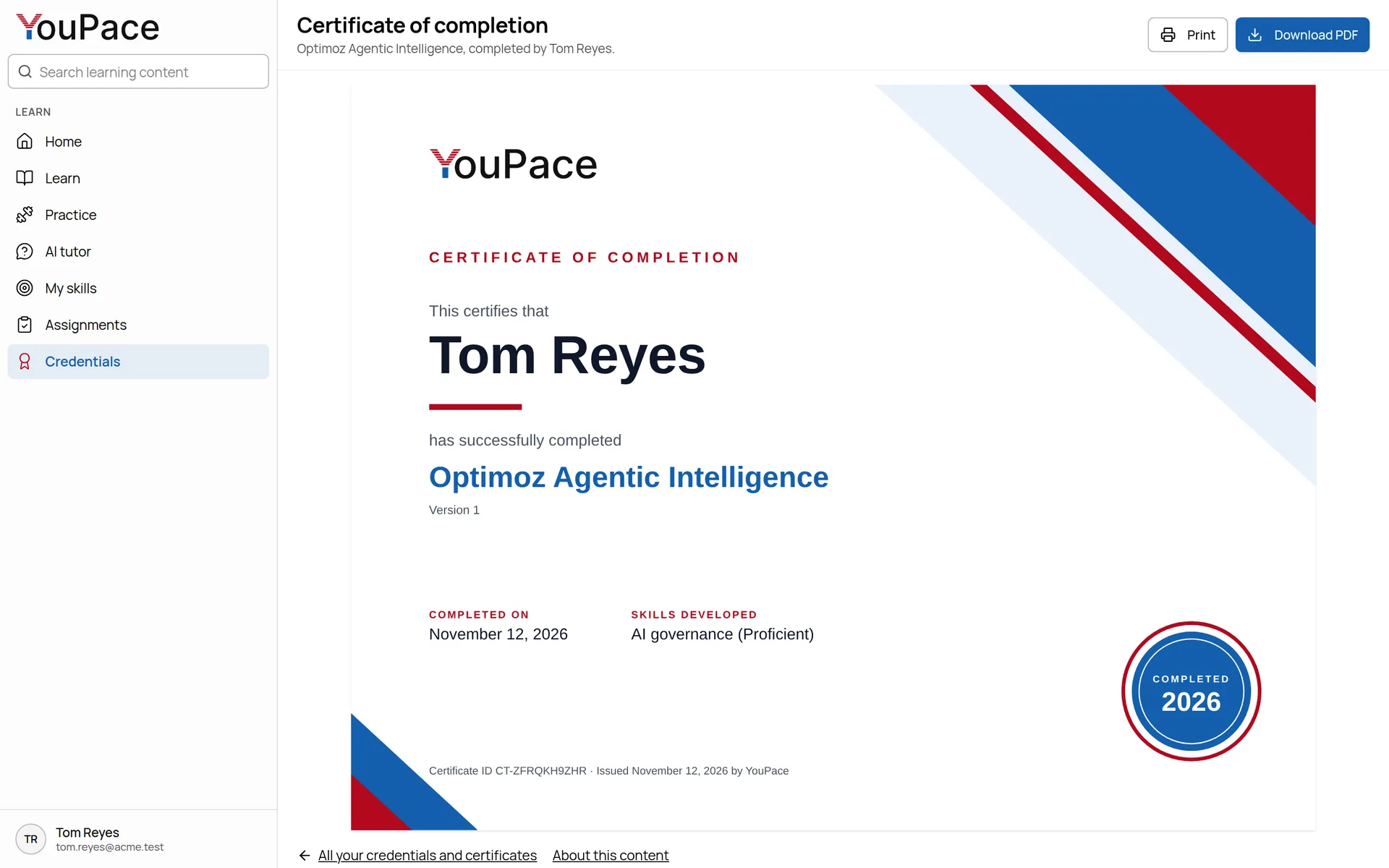
A YouPace certificate of completion in blue and red with the learner's name, the course, the completion date, the skill developed, and Print and Download PDF buttons.

Learner

Finish. Get a certificate.

Every finished PDF, video or SCORM course issues a certificate of completion, frozen as issued. Print it on one page or download a PDF.

Look for

  1. Skills developed.
  2. Print and Download PDF.

Use ← and → to move.

Content ownerContent library
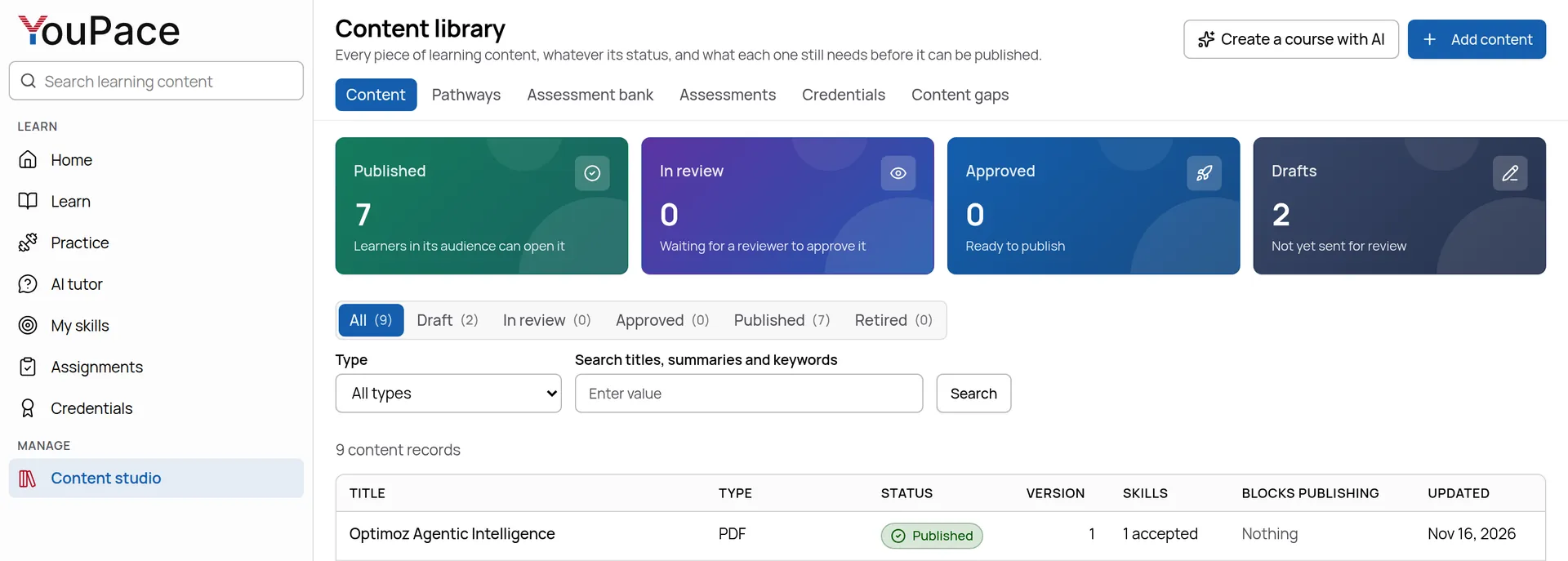
The content library: Published, In review, Approved and Drafts tiles, status filters, and a table with each item's type, status, version, skills and what blocks publishing.

Author

Every item, and what blocks it.

Olga’s library shows each record’s status, version and skills, and exactly what still blocks publishing.

Look for

  1. The status tiles.
  2. The “Blocks publishing” column.
  3. Create a course with AI.

Use ← and → to move.

Content ownerContent studio
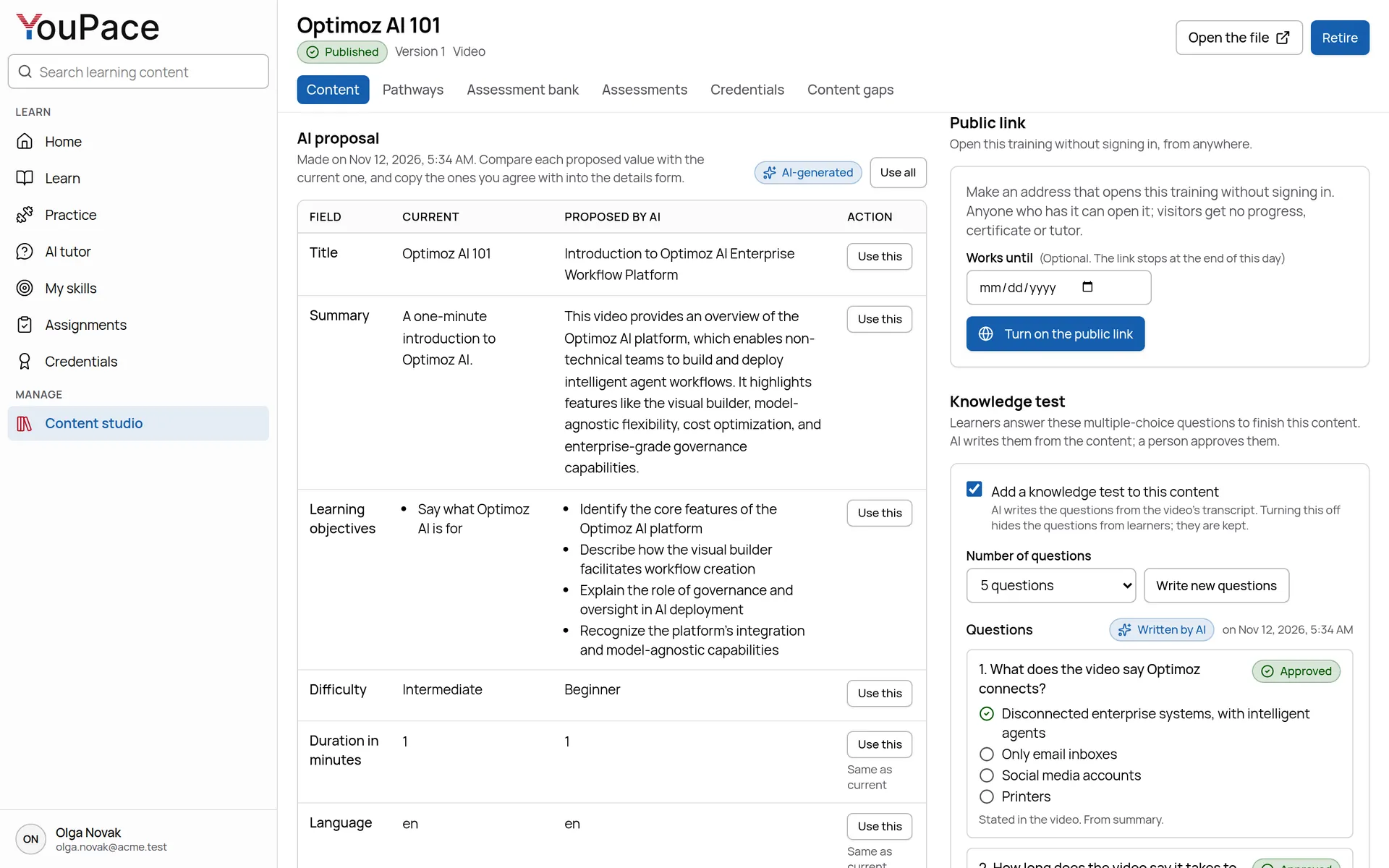
A content page in the studio: an AI proposal table comparing current and proposed title, summary and objectives with Use this buttons, beside a public-link panel and a knowledge test whose AI-written questions are marked Approved.

Author

Accept AI proposals one field at a time.

AI proposed this video’s details from its transcript. Olga compares each value with the current one and copies only what she agrees with. Quiz questions reach learners only once approved.

Look for

  1. Use this and Use all.
  2. “Written by AI” and “Approved”.
  3. Public link.

Use ← and → to move.

Content ownerCreate a course with AI
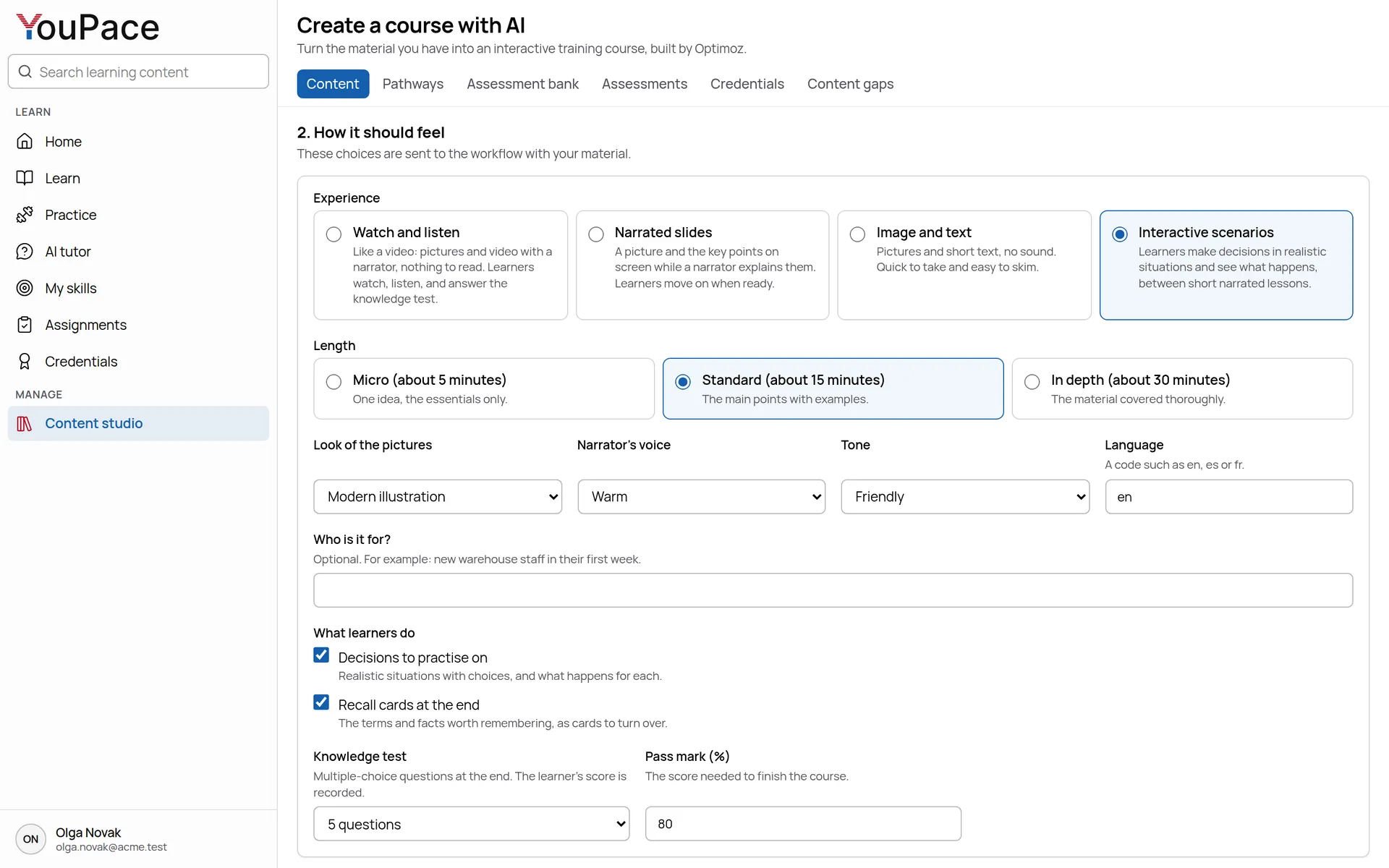
Step 2 of the course builder: experience, length, look of the pictures, narrator's voice, tone, language, audience, decisions to practise, recall cards, knowledge test and pass mark.

Author

Build a course from your own material.

Olga attaches the ebook, says what to stress, and picks the experience, length, look, voice and tone. Her organization’s Optimoz workflow builds it, and it comes back as a draft.

Look for

  1. Experience.
  2. Length.
  3. Knowledge test and pass mark.

What a course contains depends on the Optimoz workflow your organization runs.

Use ← and → to move.

Content ownerContent gaps
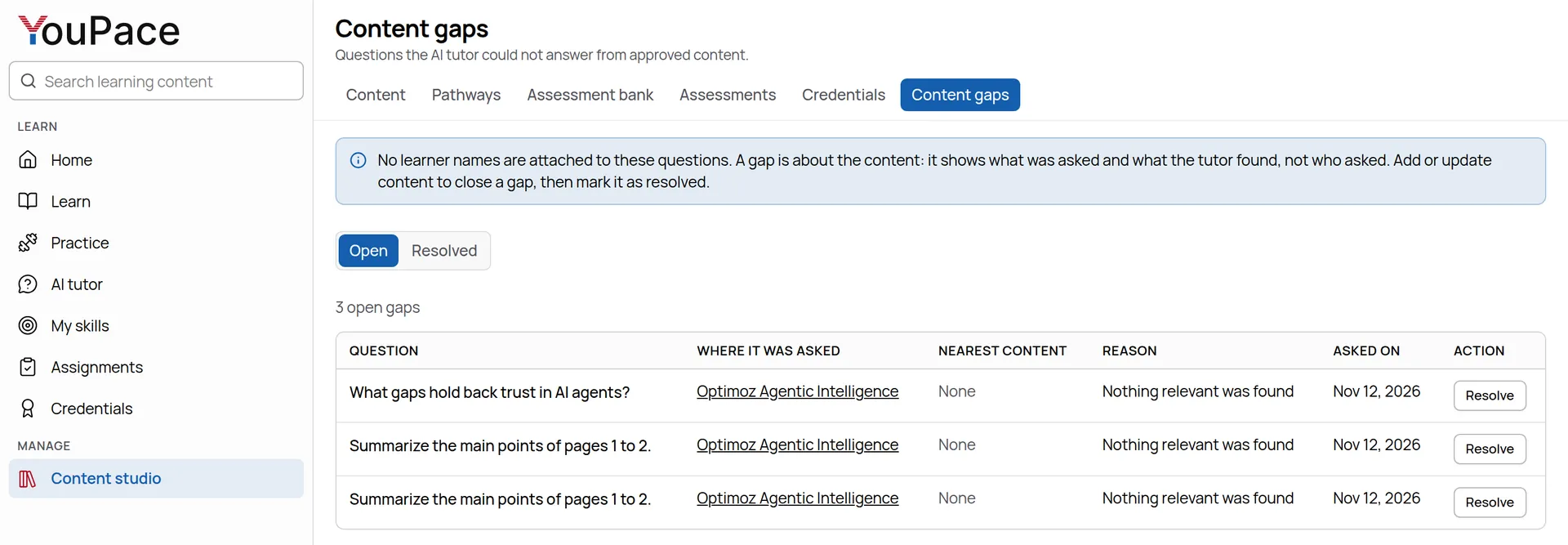
Content gaps: questions the tutor could not answer from approved content, where each was asked and why, with Resolve buttons, under a note that no learner names are attached.

Author

See what the tutor couldn’t answer.

When the tutor finds nothing in approved content, the question lands here without the asker’s name, so authors know what to add.

Look for

  1. The no-names note.
  2. Resolve.

Use ← and → to move.

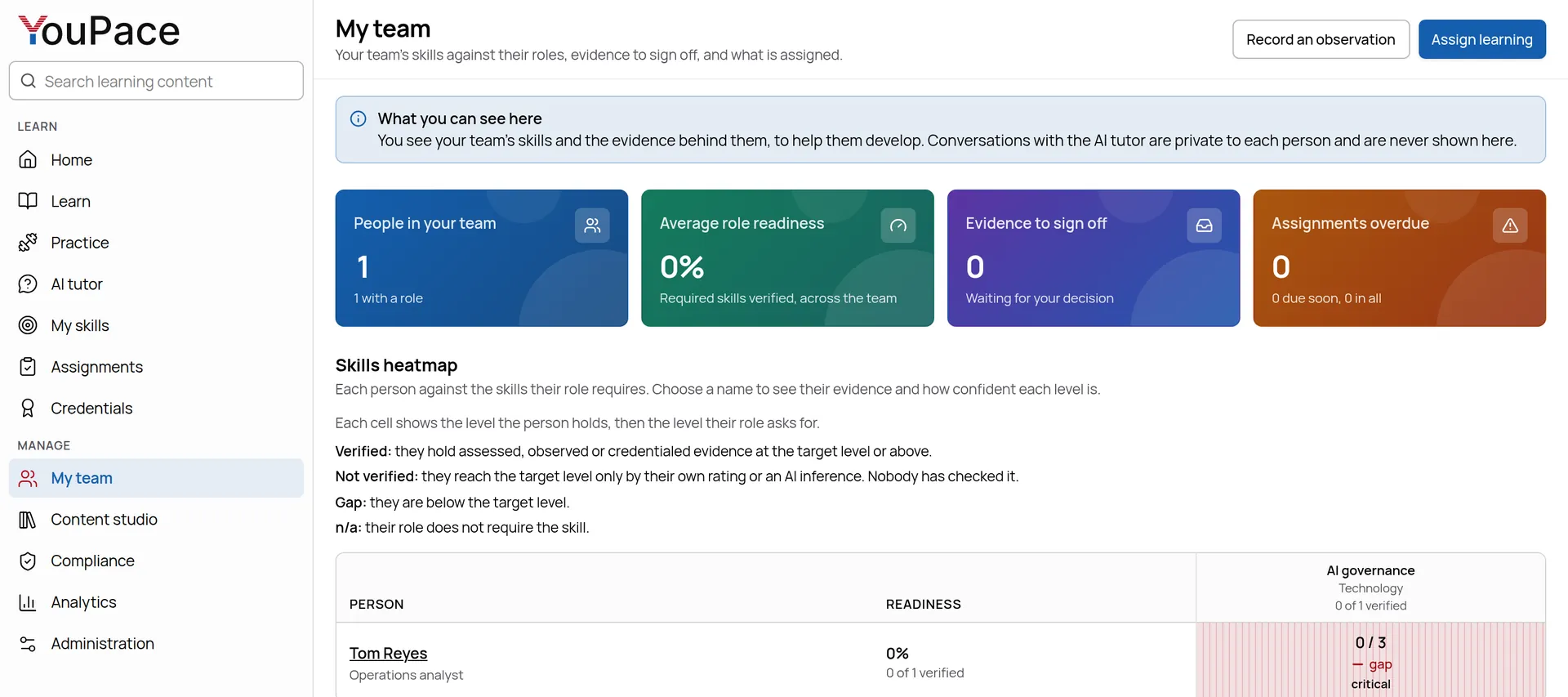
ManagerMy team
My team: a note that tutor conversations are never shown, four team tiles, and a skills heatmap with its legend and one person's row.

Manager

See the team’s skills against their roles.

Each cell shows the level held and the level the role asks for, with a pattern as well as a color. Managers sign off evidence and record observations. They never see tutor chats.

Look for

  1. The privacy note.
  2. Record an observation and Assign learning.
  3. A heatmap cell.

The demo team has one report. Real teams show a row per person.

Use ← and → to move.

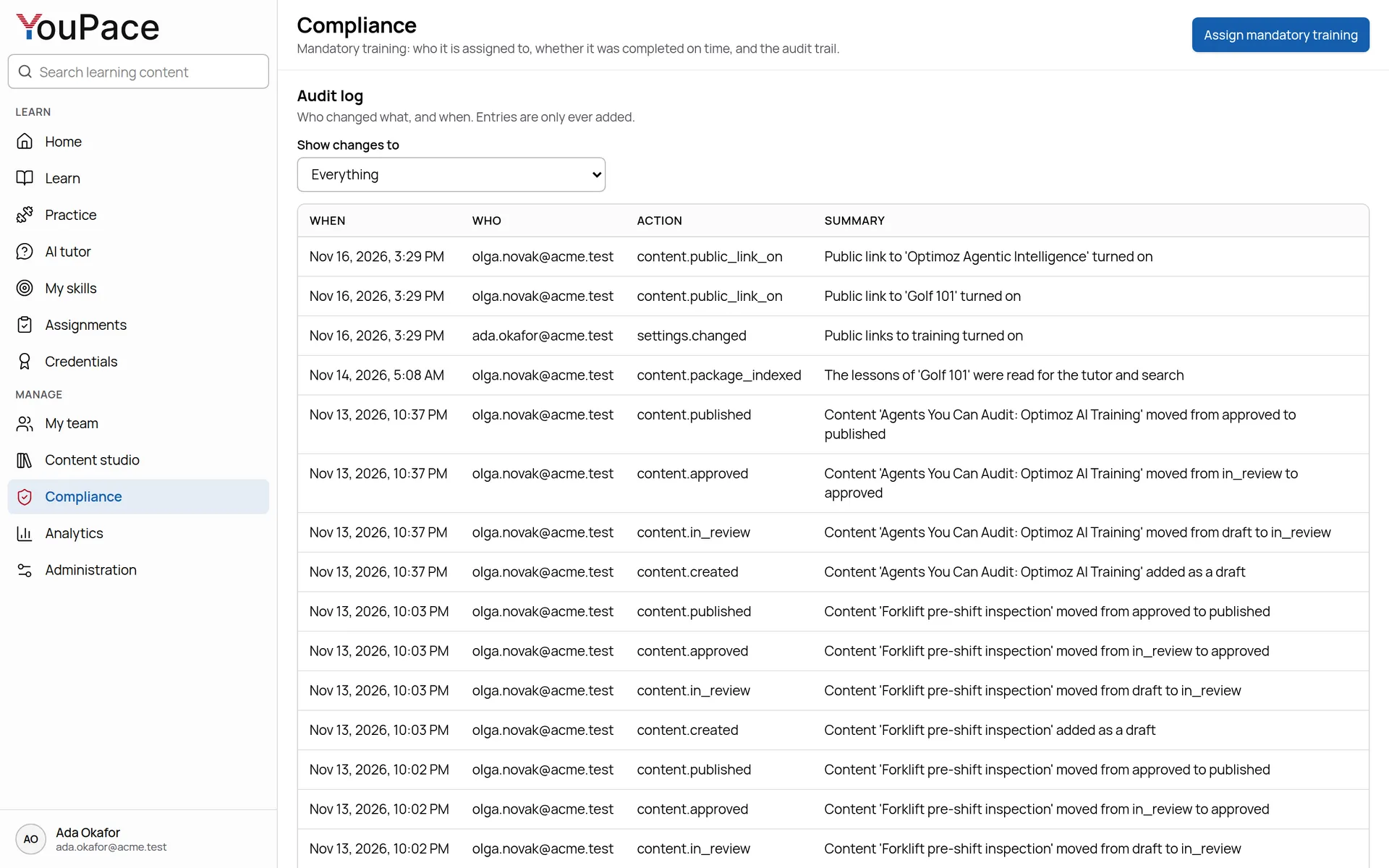
ComplianceCompliance
The compliance audit log: when, who, action and summary for public links turned on, a settings change and content moving from draft to review to approved to published.

Compliance

Answer the auditor’s question.

The audit log records who changed what, and when: content moves, settings, public links and exports. Entries are only ever added.

Look for

  1. “Entries are only ever added.”
  2. Assign mandatory training.

Use ← and → to move.

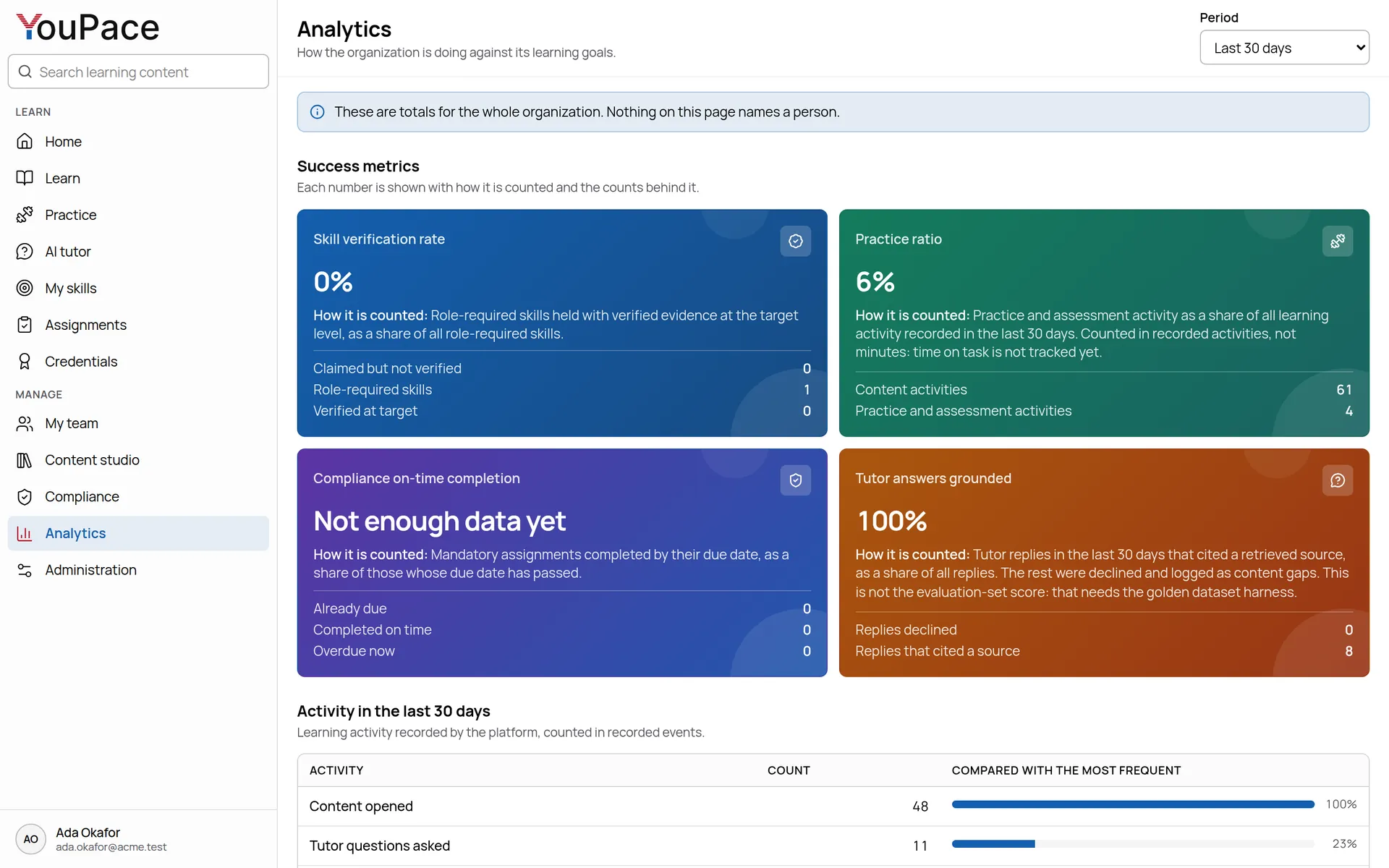
ComplianceAnalytics
Analytics with four measures, skill verification rate, practice ratio, compliance on-time completion and tutor answers grounded, each showing how it is counted, under a note that nothing on the page names a person.

Compliance

Measures that show their work.

Four measures, each with how it’s counted and the counts behind it. Totals only: nothing on the page names a person.

Look for

  1. The no-names note.
  2. “How it is counted”.

Use ← and → to move.

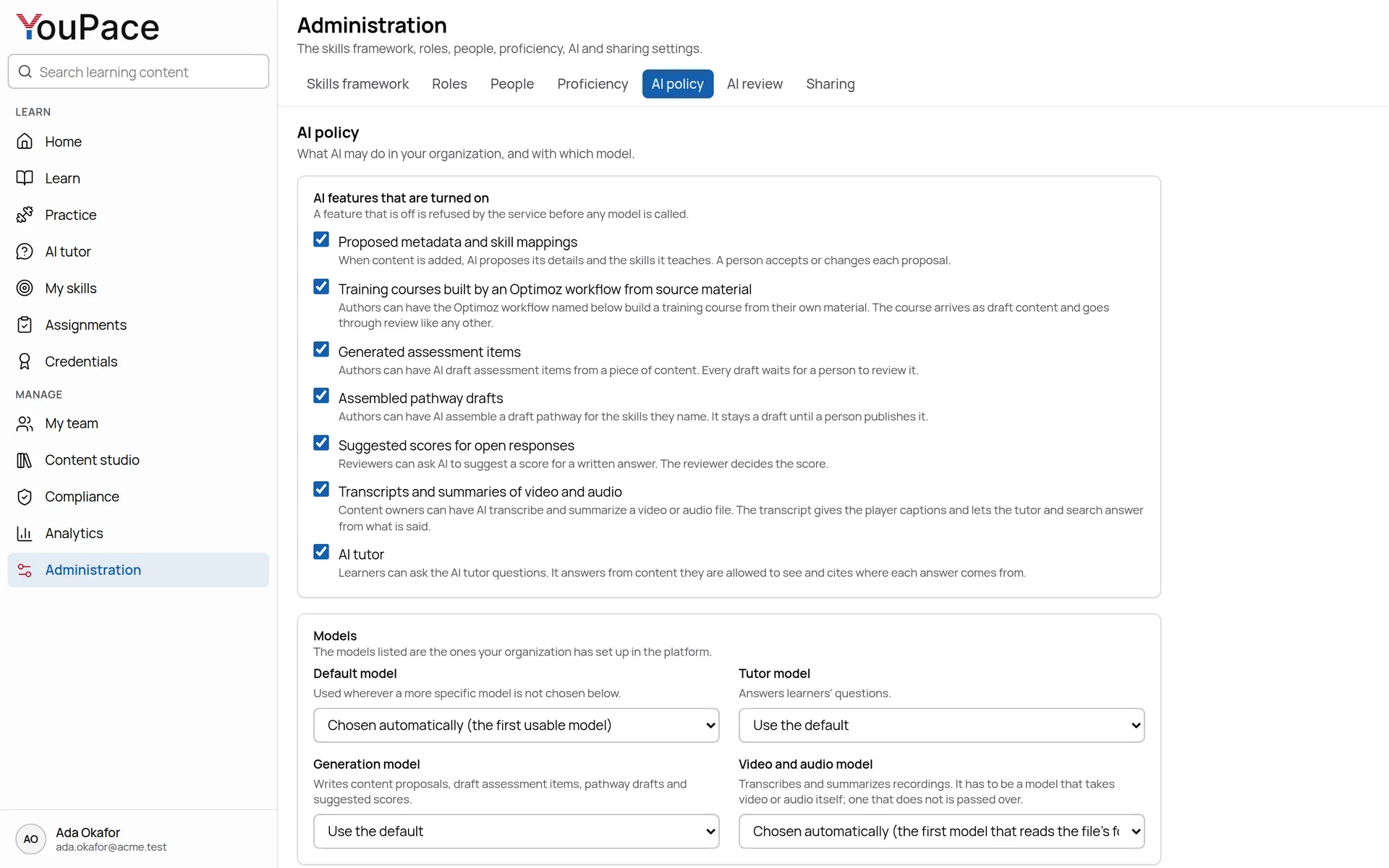
AdministratorAI policy
The AI policy screen: seven AI features, each with a checkbox and a plain description, and model choices for default, tutor, generation, and video and audio.

Admin

Switch AI on, off, and to the model you choose.

Each AI feature has its own switch. A feature that’s off is refused before any model is called. Below, choose a model for each job.

Look for

  1. The feature switches.
  2. Models.

Use ← and → to move.

AdministratorSkills framework
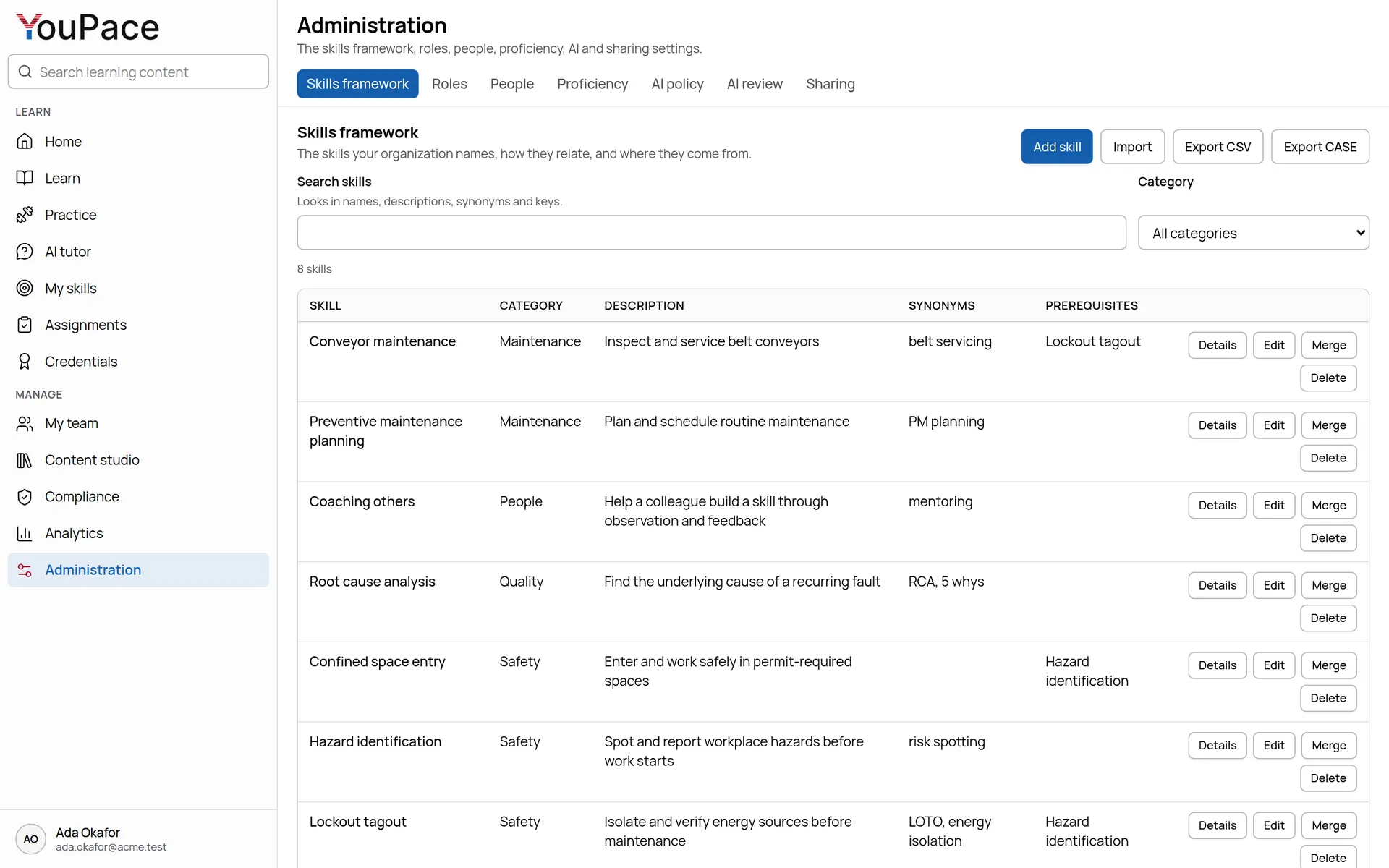
The skills framework: skills with category, description, synonyms and prerequisites, and Add skill, Import, Export CSV and Export CASE buttons.

Admin

Your skills framework, in and out.

Categories, descriptions, synonyms and prerequisites. Import it, or export it as CSV or CASE. Merge two skills and everything mapped to them follows.

Look for

  1. Import, Export CSV and Export CASE.

Use ← and → to move.

GuestPublic link
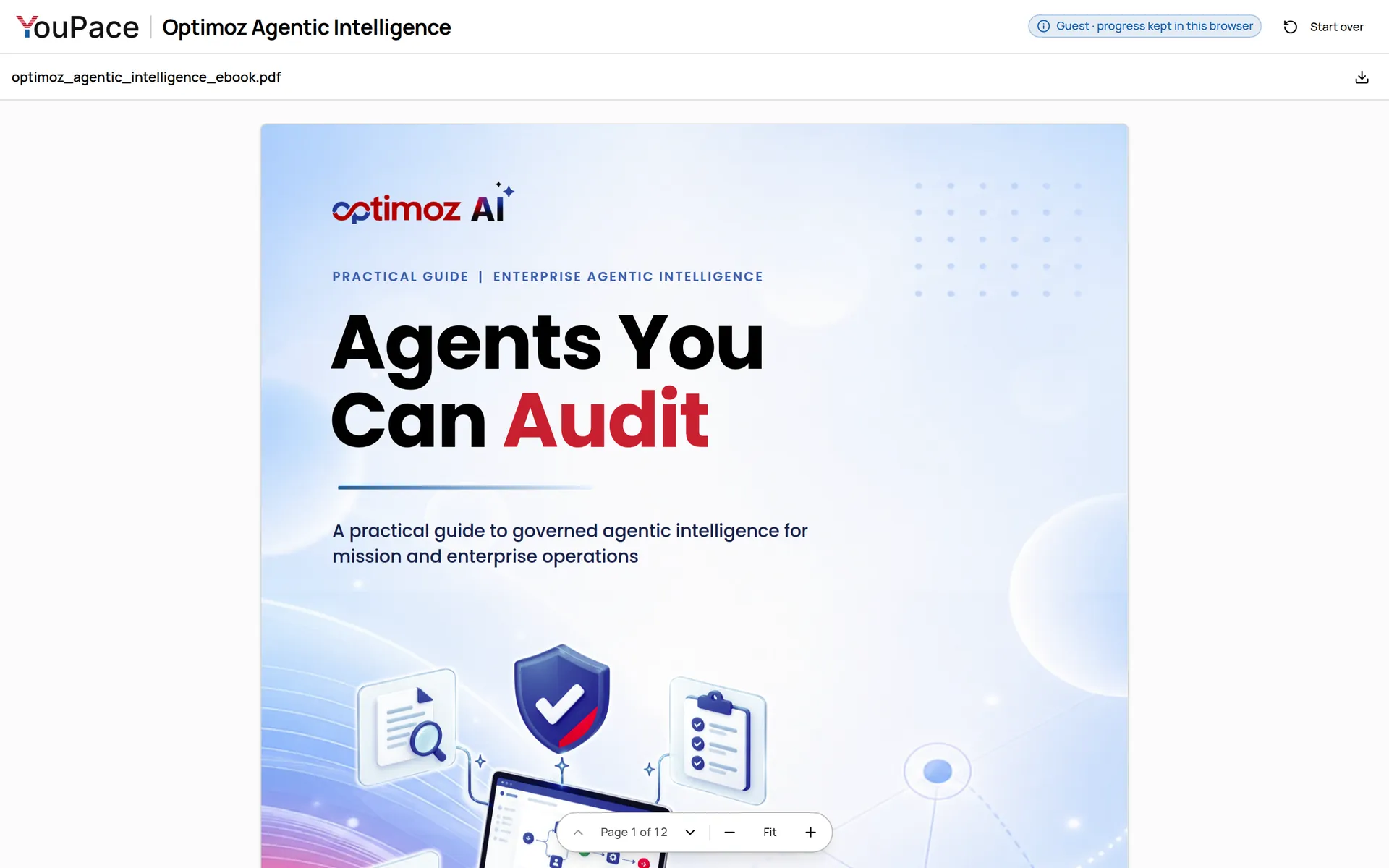
A training opened from a public link with no one signed in: the YouPace header, a Guest, progress kept in this browser label, and Start over.

Guest

Open a training with no account.

A visitor opens a published training from its link. Progress is kept in their own browser, and Start over clears it.

Look for

  1. “Guest · progress kept in this browser”.
  2. Start over.

Use ← and → to move.

That’s YouPace. See it with your team.